The Pegasus Path is a new interactive degree planning tool that will help students graduate on time. Academic Success Coaches can work with students to create a plan that best fits their needs while still meeting their degree requirements, and Pegasus Path includes features that make connecting with students even easier. If you require technical support, please submit a UCF ServiceNow ticket for Pegasus Path.
How To
Add an Advisor Message
This function allows you to add messages for the student. You can leave messages for specific courses or co-curricular activities/tasks. Make sure that you’re in Live Mode before proceeding.
- To leave a message, scroll down and navigate to the Advisor Message column.
- Click on the pencil icon and you’ll be taken to a page where you can type your message.
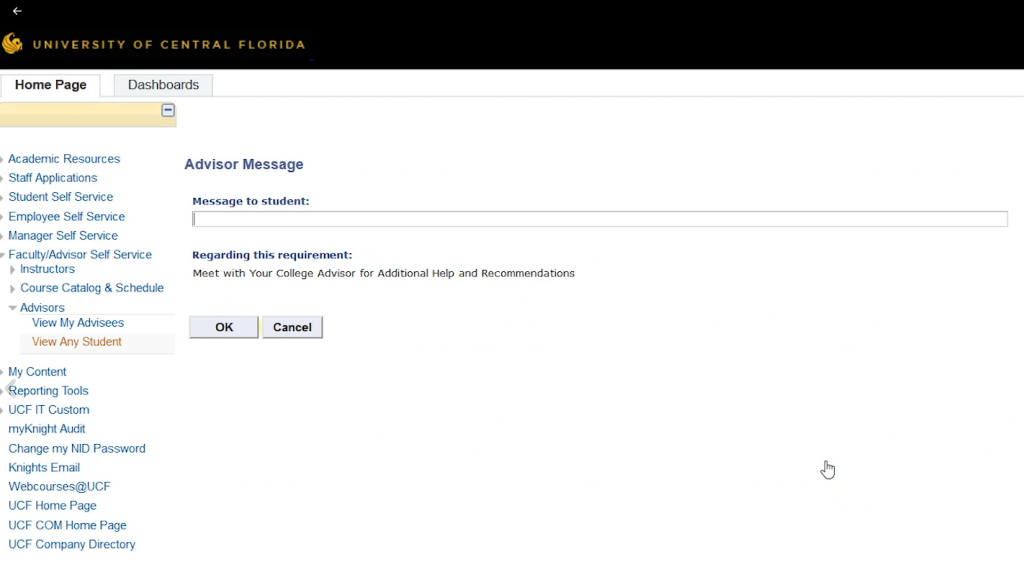
- Click OK.
The student will be notified of the message(s) the next time they view their Pegasus Path.
If you want to go over a student’s Pegasus Path during an advising session, you can print the plan. To print a student’s plan, simply click on Print located in the top left of the Pegasus Path dashboard.
Remove a course from a student’s plan
You have the option of removing courses from a student’s plan. To do this, click on the Remove icon located next to the Advisor Message column.
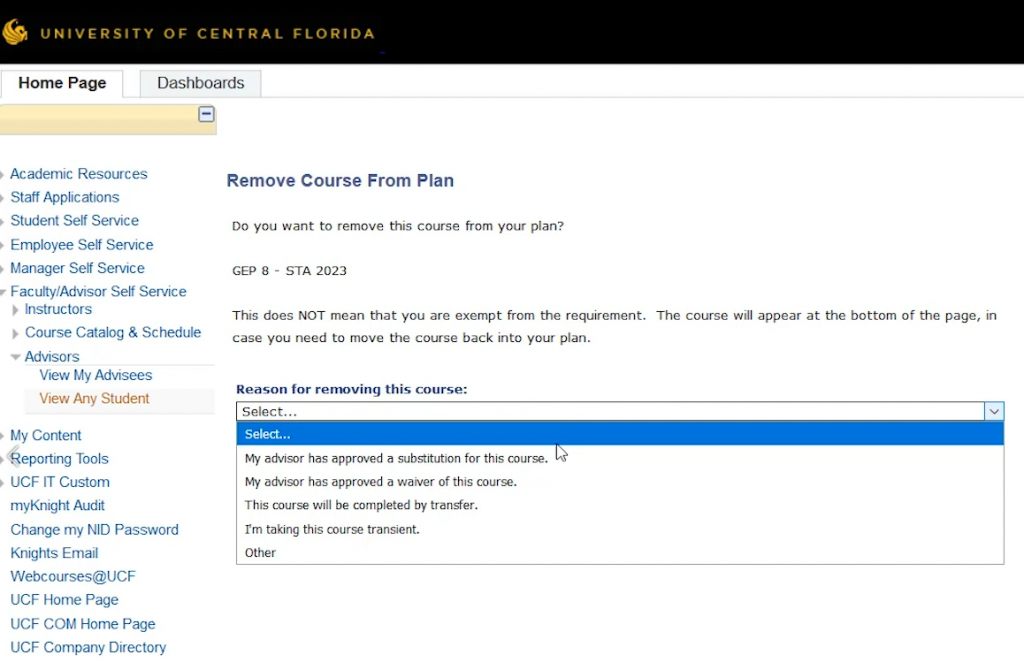
A reason for removing the course is required. For example, if the student is taking the course at another school, select I’m taking this course transient from the dropdown menu.
Your name and the rationale will be visible to the student in Pegasus Path.
Getting Started
Getting Started
With advisor access
- On the web, login to myUCF and select Faculty/Advisor Self-Service from the left sidebar.
- Next, click on View My Advisees or View Any Student.
- Enter the student’s information and click search.
- On the following screen, click Pegasus Path and choose between Test Mode and Live Mode.
Without advisor access
- On the web, login to myUCF and select Staff Applications from the left sidebar.
- Click on Campus Solutions and then Main Menu > Academic Advisement > Smart Planner > Student Planner.
- Enter the student’s information and then select Test Mode or Live Mode to view the student’s Pegasus Path.
Test Mode vs. Live Mode
Test Mode: displays information based on the student’s record and the ideal plan of study.
Live Mode: displays edits that a student has made to their plan. Any changes made in Live Mode will become part of the student’s plan.
How To
Getting Started
FAQ
How do I access Pegasus Path?
Pegasus Path is available via your myUCF Student Center. On the web, log in to myUCF and select Student Self Service option from the left sidebar. In the Student Center, a Pegasus Path link will be listed under the Academic Information section.
What is the difference between Pegasus Path, myKnight Audit, and mySchedule Builder?
The Pegasus Path is an interactive degree planning tool that uses the information from the myKnight Audit and recommends the sequence of courses to fulfill general education, major, and minor requirements. The planner considers completed and transfer coursework.
The myKnight Audit is the official degree audit tool for outlining degree requirements, indicating the courses you have successfully completed, and certifying that you have completed all the degree requirements required for graduation.
mySchedule Builder is a course scheduling tool that allows you to see the dates and times classes are offered and preview and compare possible class schedules to find the one that works best for you. After building your schedule, you can send it to the myUCF shopping cart to complete registration.
Which academic programs are not currently supported by Pegasus Path?
The Pegasus Path supports planning for most degree programs, minors, and certificates.
The following degree programs do not have plans for some or all catalog years:
- Biology- BS (25-26 and 26-27 catalog years)
- Integrated Humanities- BA and BS
- Interdisciplinary Studies- BA and BS
- Early Childhood Development and Education (All Tracks)
- Exceptional Student Education (All Tracks)
- Forensic Science- BS (26-27 catalog year)
- Nursing (All tracks)
- Secondary Education (All Tracks)
- Teacher Education (All Tracks)
For assistance developing a personalized academic plan, refer to the Undergraduate Catalog and connect with your Academic Success Coach.
List last updated 09/30/26.
What is the admin/advisor lock and student pin?
Locked requirements include advisor/admin locks and student pins. Locked requirements will always remain in their selected term on the plan when the plan is refreshed.
- Advisor/admin locks can only be placed and removed by faculty/staff users. These courses appear red in Arrange My Plan and cannot be moved.
- Student pins can be placed and removed by any user.
For some programs, an additional “suggest last semester” lock may be applied to a requirement.
- These requirements will always be displayed in the final planned semester with planned courses. These courses appear blue in Arrange My Plan and cannot be moved.
Contact your Academic Success Coach or faculty advisor if you have questions about a locked requirement.
Do I still need to see an academic success coach or faculty advisor if I’m using Pegasus Path?
Pegasus Path is a powerful planning tool, but meeting with an academic success coach or faculty advisor is critical to putting those plans in motion. They will provide you with invaluable information about courses and available resources that go beyond the level of detail available in Pegasus Path.
Do I have to follow the exact course sequence and take the number of term credit hours listed in my prepopulated Pegasus Path?
The Pegasus Path recommends a possible academic plan based on your declared programs, department default recommendations, and available academic history. This plan provides a foundation for you to further customize to meet your goals and preferences. Use Edit My Terms and Units, Select Courses, and Arrange My Plan to adjust your credit preferences and arrange your schedule. After updating the settings, the plan will refresh the course sequences (excluding locked requirements).
Does Pegasus Path reflect curriculum or academic policy changes?
Based on your catalog year, your plan will include up-to-date program requirements, curriculum and academic policy changes.
How do I schedule/register for classes after completing my Pegasus Path?
Use mySchedule Builder to see the dates and times classes are offered, preview and compare possible class schedules to find the one that works best for you and register for the classes you selected. Requirements with selected courses in Pegasus Path are imported into mySchedule Builder under the Pegasus Planner tab in the Add Courses menu.
My course information in my Pegasus Path and myKnight Audit don’t match. Which system is accurate?
The myKnight Audit is the official tool for listing your degree requirements and tracking the courses you’ve completed. The myKnight Audit is used to determine your eligibility to graduate. Not all completed requirements reflected in myKnight Audit will appear in the Pegasus Path.
If you believe a completed requirement is not accurately reflected in your Pegasus Path, please submit a UCF ServiceNow ticket for Pegasus Path so that we can investigate the discrepancy.
What does the “Audit with Planned Courses” function do?
The audit with planned courses shows how your planned courses in Pegasus Path will satisfy requirements on your myKnight audit. If you plan all courses, you can run the audit with planned courses to see if you meet all the major, minor and/or certificate requirements.
This function is for planning purposes only.
What does the “What-If?” function do?
If you are considering a major/minor change, the “What-If?” function shows you how your completed credits would apply to the new program of study and how your graduation date will be impacted. The What-if “Study Plan” creates a generic plan using the plan defaults and cannot be customized. Keep in mind that this is just a planning function.
Check out the What-If tutorial video below for additional guidance.
What is a Pegasus Path Report?
The Pegasus Path report displays a semester-by-semester sequence of courses that have been completed, are in progress, or are included in your academic plan.
What is the Pegasus Path, and why should I use it?
Pegasus Path is an interactive degree planning tool that will help you get from orientation to graduation. The tool will show you a semester-by-semester sequence of required courses based on your degree program.
The Pegasus Path is an interactive degree planning tool for UCF’s undergraduates. It uses information from your myKnight Audit, the undergraduate course catalog and input from your academic success coach or advisor to create a recommended academic plan based on your major. You can then customize that plan to fit your schedule and preferences, building a personalized roadmap to graduation.
The Pegasus Path will alert you to scheduling conflicts in your proposed plan, or if you’re taking on an especially challenging course combination. It will also remind you of important milestones, like the deadline for applying for graduation.
It also recommends learning experiences, like internships and study abroad related to your course of study. So, using Pegasus Path will not only help you graduate on time but make you more marketable to potential employers and a more competitive graduate school applicant.
In addition to helping you stay on track for graduation, you can use Pegasus Path to get a snapshot of your progress. Its reports and audits show you the courses you’ve completed and classes that are still required for the completion of your degree. If you’re thinking about changing your major or adding a minor, a “What-If?” report will show you what courses you’d need to pick up and how the change would affect your graduation timeline.
Finally, Pegasus Path serves as a portal for your academic success coach or advisor to communicate with you.
Will Pegasus Path reflect courses that I have failed or withdrawn?
Failed or withdrawn courses that are required for your major will stay on your plan until you satisfactorily complete the course.
Will the credit hours I’m transferring to UCF be in my Pegasus Path?
Transferred courses that are needed for your major or minor are included in your myKnight Audit and listed on your transcript are accounted for in your Pegasus Path plan. They can be viewed in your Pegasus Path Report.